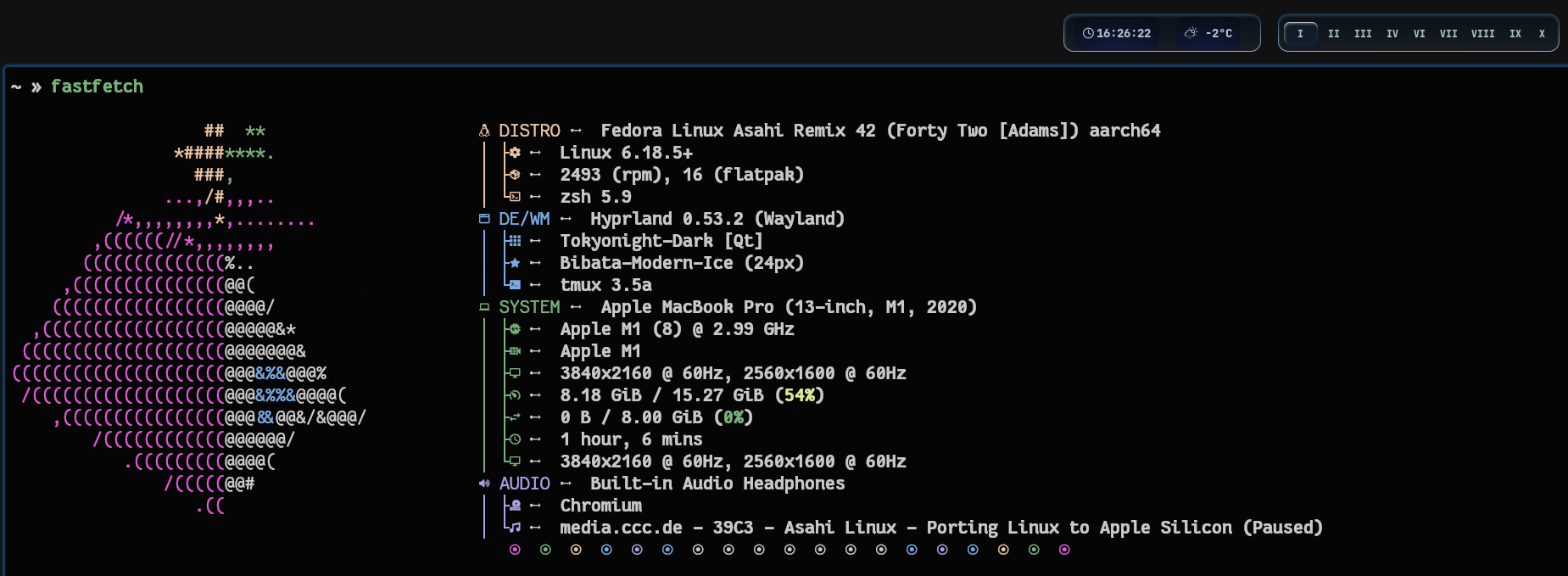
I love Linux for the freedom and possibilities it offers. I also love Macs for their M-series performance and quality. Asahi Linux is currently in alpha state—none of the M-series support monitors out of the box. Recently my friend Jacek reminded me about Asahi Linux after watching this CCC talk and mentioning that monitor support is coming soon. That got me excited to try it out with the custom alpha branch and see if I could get a monitor working on my M1 MacBook.
Overview
- Cloned the Asahi Linux kernel source (the fairydust branch).
- Used the current kernel's config as a baseline, then enabled Alt Mode options in the config.
- Built and installed the new kernel and its device tree blobs.
- Updated GRUB so the new kernel would appear in the boot menu and rebooted.
- Verified Alt Mode modules load and that DisplayPorts appear under /sys and /dev/drm.
1) Get the kernel source and dependencies
Clone the repo (example branch for Alt Mode support):
git clone https://github.com/AsahiLinux/linux.git --branch fairydust --single-branch
Install required build tools and libraries (Fedora-style example; adapt as needed):
sudo dnf install -y gcc gcc-c++ make bc bison flex elfutils-libelf-devel ncurses-devel \
  python3 zlib-devel libuuid-devel dwarves xz zstd clang llvm lld git
2) Start with the current kernel config
Copy your current kernel config as a starting point:
cp /boot/config-$(uname -r) .config
Build system guidance suggests running the oldconfig step and accepting defaults:
make oldconfig
# Press Enter for default answers
3) Enable DP Alt Mode in the kernel config
Edit the .config to ensure Alt Mode support is built as modules:
CONFIG_TYPEC_DP_ALTMODE=m
CONFIG_TYPEC_NVIDIA_ALTMODE=m
CONFIG_TYPEC_TBT_ALTMODE=m
CONFIG_EFI_SBAT_FILE=""
CONFIG_QRTR_MHI=n
Note: CONFIG_EFI_SBAT_FILE="" and CONFIG_QRTR_MHI=n need to be set manually because they caused the build to fail otherwise.
4) Build the kernel and its DTBs
Build the kernel and device trees:
make -j$(nproc)
make dtbs -j$(nproc)
5) Install modules and DTBs
Install modules and device trees:
sudo make modules_install
sudo make dtbs_install
sudo mkdir -p /usr/lib/modules/6.18.5+/dtb
sudo cp -r arch/arm64/boot/dts/* /usr/lib/modules/6.18.5+/dtb/
6) Install the new kernel
Install the kernel image:
sudo make install
7) Boot configuration
Edit /etc/default/grub to show a selectable menu:
GRUB_TIMEOUT_STYLE=menu
GRUB_TIMEOUT=5
Update GRUB and reboot:
sudo grub2-mkconfig -o /boot/grub2/grub.cfg
sudo reboot
After reboot, select the new kernel from the menu and boot.
8) Verify after boot
Check that the DP Alt Mode modules are present and loaded:
lsmod | grep typec
If not loaded, load them manually:
sudo modprobe typec_displayport
sudo modprobe typec_nvidia
sudo modprobe typec_thunderbolt
Confirm DP ports exist in the system:
ls /sys/bus/typec/devices/
ls /sys/class/drm/
Optional: auto-load on boot:
echo -e "typec_displayport\ntypec_nvidia\ntypec_thunderbolt" | sudo tee /etc/modules-load.d/fairydust.conf
9) Test the monitor
With Alt Mode active, connect the monitor to the DP-capable USB-C port and verify display output. In my case ONLY the 2nd DP slot worked.
Note: If you follow this guide, proceed with caution. I don't take responsibility if you damage your system. This involves building and installing a custom kernel, which can potentially break things.